Sign Up for Systeme.io (100% Free Forever)
First, you need a Systeme.io account to create your forms.
What to do:
- Go to Systeme.io (click here)
- Click “Start Free” or “Get Started”
- Enter your email and create a password
- No credit card required – completely free forever!
Create a Sales Funnel
Once logged in, you need to create a funnel to house your form.
Step-by-step:
- Click on “Sites” in the left menu
- Click “Sales funnels”
- Click the “Create” button
- Give your funnel a name (e.g., “Lead Magnet Funnel”)
- Choose funnel type: “Custom” (gives you full control)
- Click “Create”
Create an Inline Form
Now you’ll create the form that collects emails and automatically styles itself to match your page.
Inside your funnel:
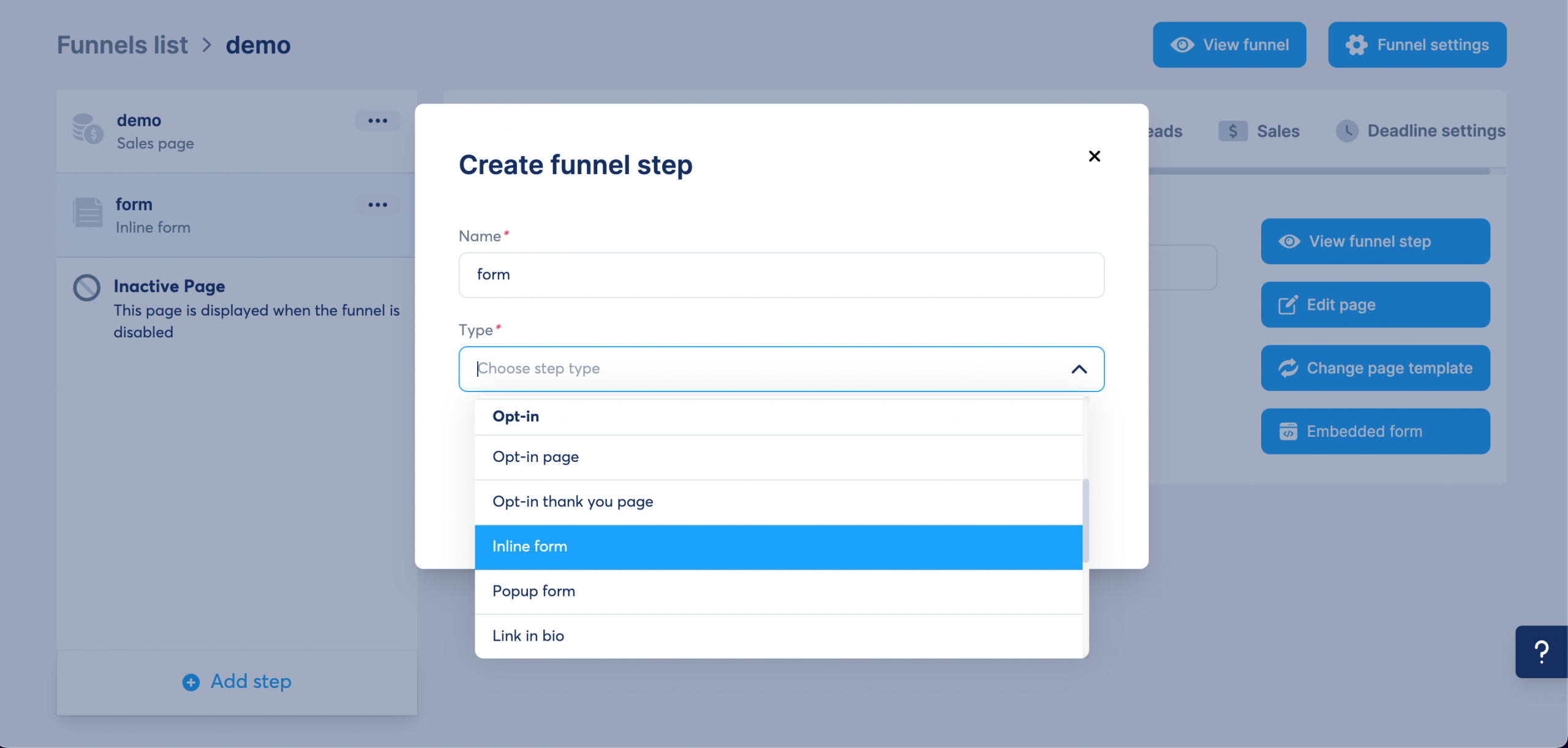
- Click “+ Add a step” or “Create step”
- Give it a name (e.g., “Email Form”)
- Click on the dropdown that says “Choose step type”
- Select “Inline form” from the list (see screenshot below)
Edit the Form Fields
Now you need to edit your form to set up what information you want to collect.
How to edit:
- Click the “Edit page” button
- Use the editor to set up your form fields
Recommended fields to collect:
- Name field – to personalize your emails
- Email field – required to collect leads
You can add more fields if needed, but keep it simple – the fewer fields, the more people will sign up!
Get the Form Code
Now you’ll get the code to embed this form into your HTML page.
To get the code:
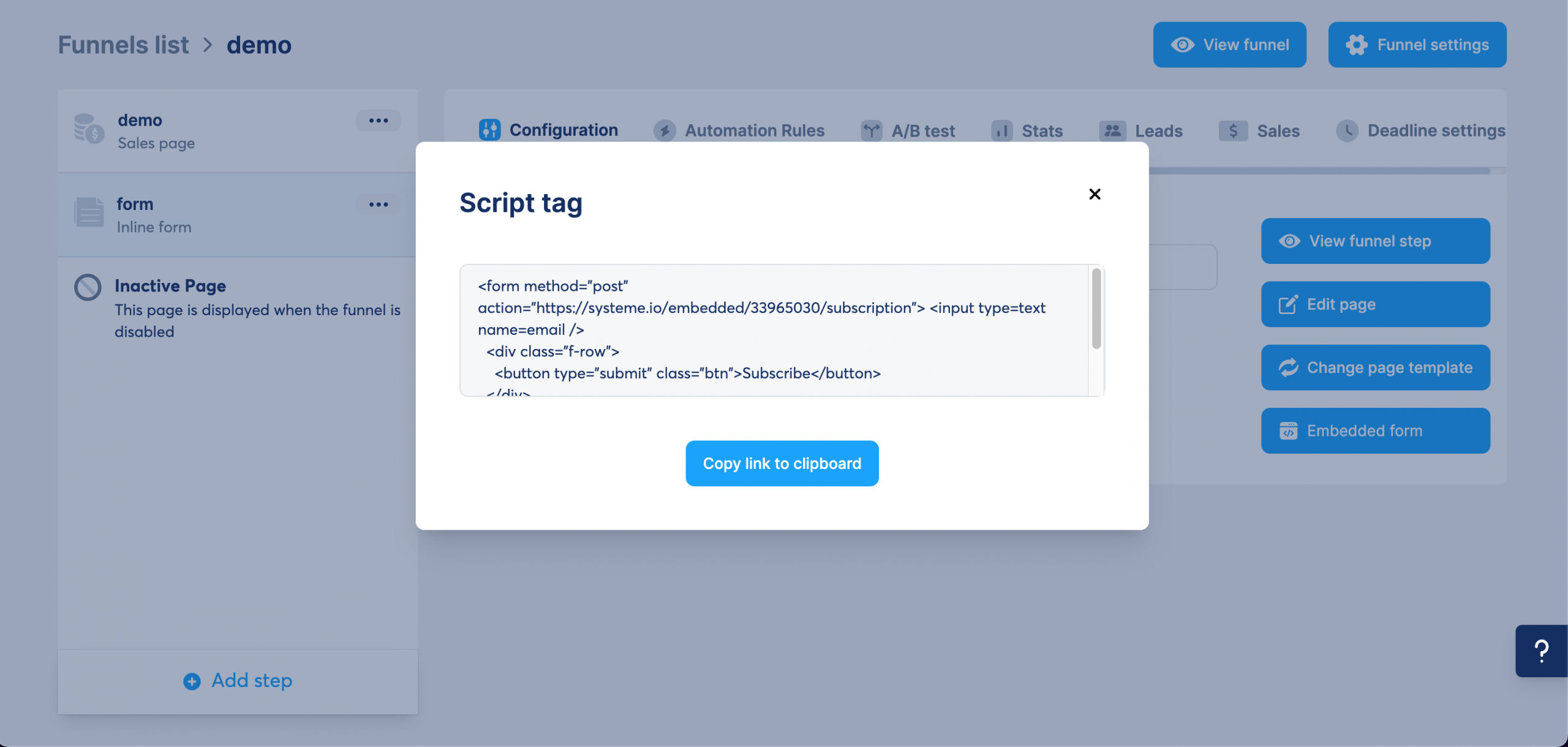
- On the right side of your screen, look for the blue button that says “Embedded form”
- Click on “Embedded form” (NOT “Script”!)
- A popup will appear with your form code
- Click “Copy link to clipboard”
Add the Form to Your Page (Super Easy!)
Final step! You’ll add the form to your HTML page – no coding knowledge needed.
Here’s what to do:
- Open the AI tool you used to create your page (like Claude.ai or ChatGPT)
- Paste your form code that you copied
- Tell the AI exactly what you want, like this:
Example of what to say to the AI:
✅ Your Lead System is Ready!
You can now collect emails automatically and build your business without worrying about tech limitations.
Start Collecting Leads (Free Account)